Excel Line Break in Cell: Shortcuts for Windows, Mac and Formulas
Excel line break shortcut by device
On a computer, put the cell in edit mode, click where the text should split, then use the shortcut for your system.
| Where you use Excel | How to insert the line break |
|---|---|
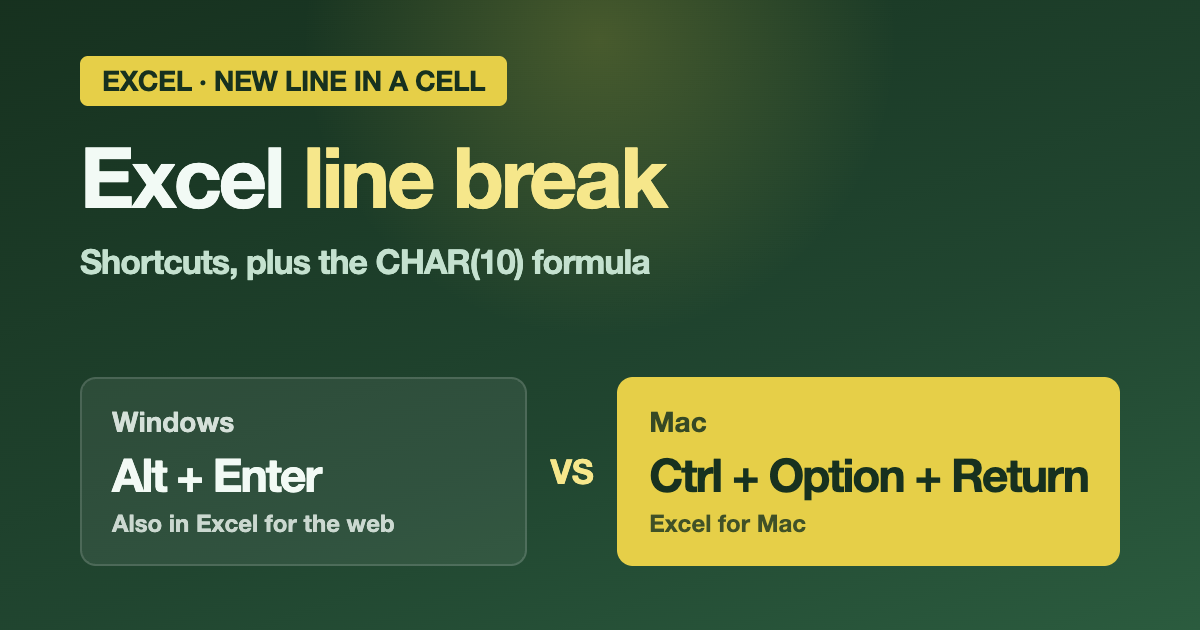
| Windows | Double-click the cell, click where you want the break, press Alt + Enter |
| Mac | Double-click the cell, click where you want the break, press Control + Option + Return |
| Excel for the web | Double-click the cell (or select it and press F2), click where you want the break, press Alt + Enter |
| Android | Double-tap the cell, tap and hold where you want the break, then tap New Line |
| iPhone and iPad | Tap the keyboard toggle button to open the numeric keyboard, tap and hold where you want the break, then tap New Line |
On Windows you can also select the cell and press F2 instead of double-clicking. On a Mac, Microsoft’s Excel for Mac shortcut list also shows Option + Return and Cmd + Option + Return for the same job, so try those if the first combination does nothing on your keyboard.
How to add a line break in an Excel formula
A formula can’t use Alt+Enter. You add the line feed character, CHAR(10), between the pieces of text instead. Microsoft’s own example uses the same method: a CHAR(10) placed where the line break should go.
- Select the cell. On Windows, press Ctrl + 1, open the Alignment tab and check Wrap Text. On a Mac, select the cell and click Wrap Text on the Home tab.
- Type the formula with
CHAR(10)where the break goes, for example="Order #"&A2&CHAR(10)&"Status: "&B2. - If the second line is cut off, widen the column or increase the row height (see the fix table below).
The break only shows up when Wrap Text is on. Without it, the whole result sits on one line.
Line break formulas you can copy
| What you want | Formula | Notes |
|---|---|---|
| Join two cells on two lines | =A2&CHAR(10)&B2 |
Turn on Wrap Text |
| Join a whole row, one item per line | =TEXTJOIN(CHAR(10),TRUE,A2:C2) |
TEXTJOIN needs Excel 2019 or later, or Microsoft 365. TRUE skips empty cells. |
| Turn a separator into a line break | =SUBSTITUTE(A2,", ",CHAR(10)) |
Replaces every comma-and-space with a line break |
| Replace line breaks with a space | =SUBSTITUTE(A2,CHAR(10)," ") |
Keeps the words apart |
| Strip line breaks completely | =CLEAN(A2) |
Also removes other nonprintable characters. Words on either side of the break will run together. |
| Count the lines in a cell | =LEN(A2)-LEN(SUBSTITUTE(A2,CHAR(10),""))+1 |
Counts the line breaks, then adds 1 |
The CLEAN function removes the first 32 nonprinting characters of the 7-bit ASCII set (codes 0 through 31), and CHAR(10) is one of them. Microsoft’s own CLEAN example removes CHAR(10) from a text string.
If you plan to use CHAR(10) in Excel for the web, note that Microsoft says it supports only CHAR(9), CHAR(10), CHAR(13) and CHAR(32) and above. That covers the line break.
Excel line break not working: causes and fixes
| What you see | Likely cause | Fix |
|---|---|---|
| Alt+Enter does not add a line break | The cell is not in edit mode. Microsoft’s steps start by opening the cell for editing. | Double-click the cell or press F2 first, then click where the break goes |
| You are using Alt+Enter on a Mac | Alt+Enter is the Windows and web shortcut. Excel for Mac has its own list. | Try Control + Option + Return. Microsoft’s Mac list also shows Option + Return and Cmd + Option + Return. |
| Formula result stays on one line | Wrap Text is off | Home tab, Alignment group, Wrap Text |
| Only the first line shows | The row height is fixed, or the cells are merged | Windows: Home > Cells > Format > AutoFit Row Height. Mac: Format menu > Row > AutoFit. You can also drag the bottom border of the row. If that does not help, check whether the cells are merged. |
| Shortcut seems ignored in Excel for the web | The browser takes the shortcut first | In Excel for the web, select Help > Keyboard Shortcuts, then select Override browser shortcuts |
Tips that save time
- Break first, wrap second. A manual break forces a new line at that exact spot. Wrap Text only adds soft breaks when the text reaches the edge of the column. If you change the column width, the wrapping adjusts automatically, but your manual breaks stay where you put them.
- Use CHAR(10) in both directions. The character that you add with a formula is the same one you remove with
SUBSTITUTEorCLEAN, so the formulas in the table above work on cells that you broke by hand, too. - Check the key labels. Microsoft’s shortcut lists use the US keyboard layout. On other layouts, the keys may not match exactly.